Agency time tracking usually forces a bad trade: either you get clean per-project numbers by surveilling everyone with screenshots, or you get privacy and a mess of spreadsheets. You can have the roll-ups without the monitoring. Here's how the org → team → project structure works.
TL;DR
- Organisation → Teams → Projects: hours roll up so managers see team and org totals at a glance.
- Each contributor's time is captured automatically from file edits and URLs — no manual timers.
- No screenshots, no keystroke logs, no productivity scores on anyone.
- Per-project and per-client totals feed straight into invoices at each client's rate.
The trade agencies are asked to make
Small studios and agencies get pushed toward a grim choice. Tools that give you
clean per-project, per-person numbers tend to get them by watching people:
periodic screenshots, keystroke counts, a productivity score next to each name.
The tools that respect your team tend to leave you reconstructing project totals
from spreadsheets and Slack.
You don't actually need surveillance to answer "how many hours went to the Dunder Mifflin
project this month, and who worked on it." You need structure and automatic
capture.
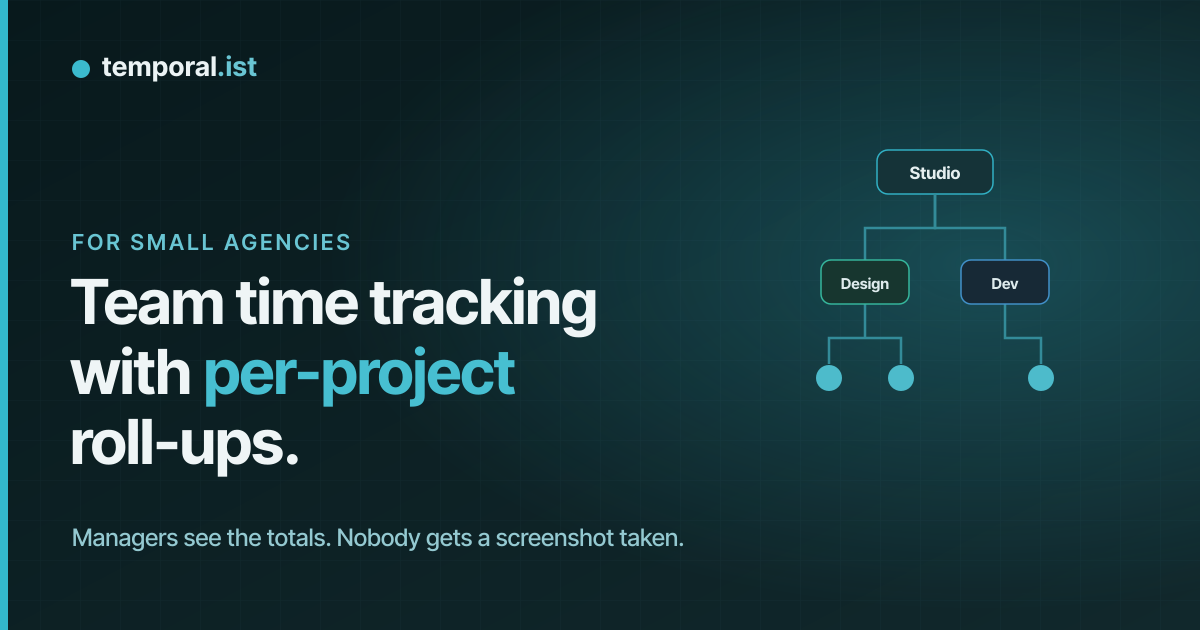
Structure: organisation → teams → projects
Time is organised in a hierarchy, and totals roll up through it:
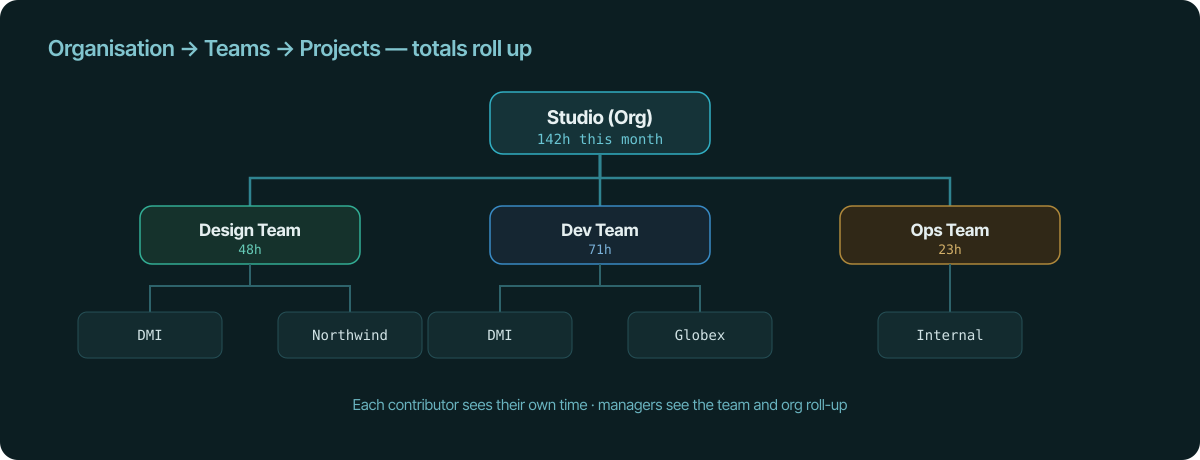
- An organisation holds your teams (Design, Dev, Ops).
- Teams own projects, each usually tied to a client.
- Hours captured on a project roll up to the team, and team totals roll up to
the organisation.
A contributor sees their own time. A manager sees the team and the org-wide
roll-up — without anyone having to compile it.
Capture stays automatic — and private
The per-person numbers come from the same automatic capture the solo product
uses: a desktop client (macOS, Windows, Linux) watches each person's configured
project directories, browser extensions track work by URL, and sessions appear
on their own. Nobody starts a timer; nobody installs a surveillance agent.
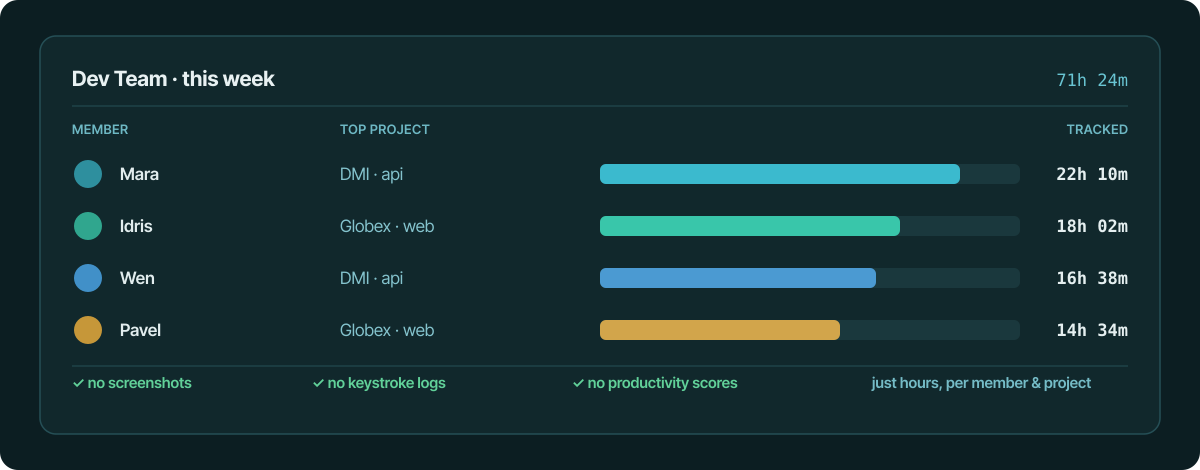
The manager view answers the questions that actually matter — who's on what,
how the week is distributed, which project is eating hours — using nothing but
tracked time. There are no screenshots, no keystroke logs, and no
productivity scores. The record is what was worked on, not a judgement about
how hard someone was working.
From team hours to client invoices
Because projects link to clients and rates, those rolled-up hours aren't just a
dashboard — they're billable. Per-project and per-client totals feed directly
into invoices, auto-numbered per organisation, so the work your team tracked
becomes the bill you send the client without a re-entry step.
Real-time when it matters
For the "who's working on what right now" question, active sessions broadcast
over a WebSocket, so a live view reflects what's being tracked across the team
as it happens — useful for coordination, without it being a monitoring tool.
The takeaway
A small agency can have clean per-project and per-team roll-ups without pointing
a surveillance system at its own people. Structure the work as organisation →
teams → projects, let capture happen automatically from file edits and URLs,
keep it screenshot-free, and bill clients from the same totals your managers
review.
See also
- team time tracking — Per-person and per-team roll-ups without surveilling your team.
- turn tracked time into invoices — Tracked hours become client invoices in the same app.
- no-surveillance time tracking — Log accurate hours without screenshots or monitoring software.
- track time across multiple clients — Auto-tag time per client and bill each separately.
- file-change time tracking — Why file changes beat activity monitors for privacy and context.
agenciesteamstime trackingproject trackingguide